
How to Make Stunning Images with ChatGPT: The Ultimate Guide
Artificial intelligence is changing how we create and visualize ideas. One of the most exciting advancements in this space is image generation with ChatGPT. You no longer need to rely on separate AI tools like DALL·E or Midjourney. Today, you can create stunning visuals directly inside ChatGPT—from concept art and branding designs to futuristic landscapes and product prototypes.
In this guide, we’ll show you how to create beautiful, high-quality images with ChatGPT, how to write the perfect prompts, and how to use this feature for creative and professional work.
The Rise of AI Image Generation in ChatGPT
Over the past few years, AI tools have become smarter and more accessible. The latest version of OpenAI’s model, GPT-4o (GPT-4 omni), has taken things a step further. It merges text, vision, and creativity into a single experience. Now, when you describe something in detail, ChatGPT can visualize your idea instantly.
With Images with ChatGPT, users can:
- Generate original artwork from text prompts
- Edit uploaded images with natural language
- Change backgrounds, colors, and styles
- Create design mockups or product concepts
- Produce marketing and educational visuals within seconds
This integration makes image creation faster, smoother, and more conversational than ever.
Step-by-Step: How to Create Images with ChatGPT
Creating images with ChatGPT is simple, even for beginners. Here’s how to start:
1. Open the Image Generator
To begin, make sure you’re using GPT-4o. Free users can access image generation directly, while Plus or Pro users can switch to GPT-4o from the model settings. Once active, you’ll see an image icon beside the text box—this is where the magic begins.
2. Write a Detailed Prompt
The success of your image depends on your prompt. The more detail you provide, the more accurate and visually appealing your image will be.
For example:
- Instead of writing “a cat,” say “a fluffy white Persian cat lounging on a velvet armchair near a sunny window.”
- If you want a particular mood, style, or composition, mention it. For instance:
- “in cyberpunk style”
- “digital art with soft lighting”
- “hyper-realistic portrait with bokeh background”
Use descriptive words for lighting, mood, setting, and color to guide the AI effectively.
3. Edit or Upload Images
One of the most powerful updates in ChatGPT is the ability to upload images for editing. You can now:
- Change image backgrounds or colors
- Add or remove objects
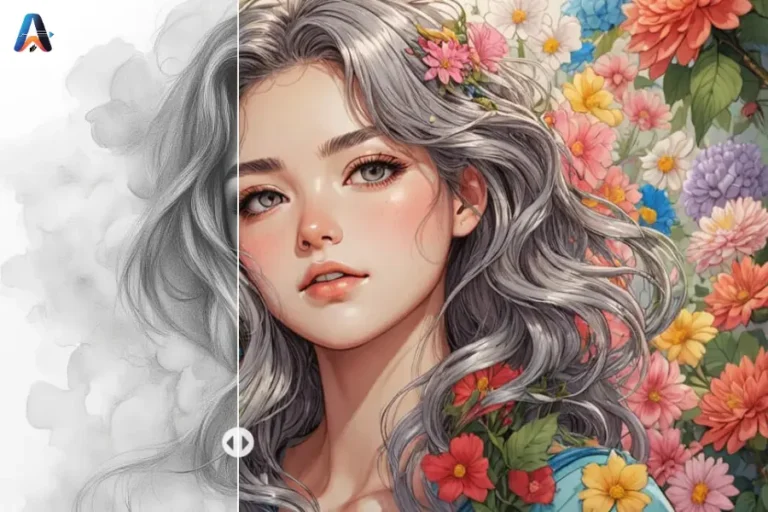
- Apply a specific art style (like watercolor, sketch, or 3D render)
- Combine elements from multiple visuals
Just upload your image and tell ChatGPT what you’d like to change. For example:
“Make this logo background transparent,” or “Turn this portrait into a pencil sketch.”
4. Generate and Download
Once you’ve written your prompt, hit generate. ChatGPT will create your image within seconds. You can then download, share, or request edits directly in the chat.
If you’re not satisfied with the first result, adjust your prompt slightly—small refinements often produce much better results.
Read also: Free AI Video Generator: How to Make Professional Videos
Writing Perfect Prompts for Images with ChatGPT
Prompt writing is an art. The way you describe your vision directly shapes the final image. Follow these tips to get professional-quality results:
- Be Specific: Include details about the subject, background, colors, and perspective.
- Add Context: Mention the environment—urban, fantasy, underwater, outer space, etc.
- Use Style Cues: Describe the artistic direction (realistic, cartoonish, abstract, cinematic).
- Include Emotion: Mood words like “serene,” “chaotic,” “romantic,” or “dramatic” guide tone and lighting.
- Mention Camera Angles: Use phrases like “aerial view,” “close-up,” or “wide-angle shot.”
Example Prompt:
“A futuristic cityscape at night with neon lights, flying cars, and rain-soaked streets — ultra-realistic style.”
This prompt gives ChatGPT clear direction for style, theme, and mood, ensuring a visually impressive result.
Creative Uses of Images with ChatGPT
The possibilities for AI image generation go far beyond casual experimentation. Here’s how different users can benefit:
1. Content Creators
You can design blog banners, YouTube thumbnails, and social media visuals instantly. Instead of hiring a designer for every post, generate multiple creative options in seconds.
2. Marketers & Entrepreneurs
Use images with ChatGPT to design product mockups, logos, promotional banners, and ad concepts. It’s a cost-effective way to visualize campaigns before production.
3. Educators & Students
Teachers can create infographics, charts, or custom illustrations for lessons. Students can use it for projects, presentations, or visual storytelling.
4. Artists & Designers
Artists can use ChatGPT for brainstorming. It’s perfect for mood boards, conceptual sketches, and exploring color palettes before creating final artwork.
5. Businesses
From presentation slides to internal communication visuals, companies can use AI-generated images for faster, professional-looking results.
Tips for Professional Results
To make your images with ChatGPT look polished and ready for public use:
- Use high-quality prompts with vivid language.
- Experiment with multiple art styles before finalizing.
- Download and refine images using tools like Photoshop or Canva for final touches.
- Keep file names descriptive (e.g., “ai-generated-product-banner.jpg”) for SEO.
- Add watermarks or branding before posting publicly.
Limitations to Keep in Mind
While ChatGPT image generation is powerful, it’s still evolving. Here are a few things to note:
- Complex compositions may take several tries to perfect.
- Exact face recreation or copyrighted characters are restricted.
- Resolution is currently optimized for web use, not for large-format printing.
To overcome these, combine ChatGPT’s creative power with traditional editing software for best results.
The Future of Image Creation with ChatGPT
AI image generation is just getting started. OpenAI continues to enhance ChatGPT’s capabilities, adding higher resolution, real-time editing, and multi-image compositions. Soon, you’ll be able to create dynamic visuals, animate them, or collaborate in real-time.
The future will bring:
- Interactive editing: Modify parts of an image without regenerating the whole scene.
- Custom style learning: Train ChatGPT on your unique artistic style.
- Team workflows: Multiple users creating visuals together within one chat.
With these updates, Images with ChatGPT will redefine creativity for designers, brands, and everyday creators alike.
FAQs
Yes, ChatGPT’s GPT-4o model includes native image generation, letting users create visuals directly from text prompts.
Free users can access basic image generation, while Plus or Pro users enjoy more advanced features.
Yes, you can upload an image and ask ChatGPT to modify, recolor, or restyle it using natural language.
You can make logos, illustrations, landscapes, concept art, infographics, and social media visuals.
Yes, as long as you follow OpenAI’s usage policies and avoid copyrighted or trademarked content.